Title here
Summary here
Congratulations, you’re ready to set up your GB-Link adapter! This guide covers adapters from Etsy (v1), Crowd Supply (v2), or a DIY build.
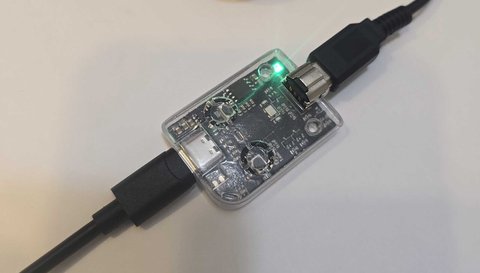
Firmware only: Skip the Game Boy and cartridge. Plug the adapter into USB, wait for the red light, then go to step 2.
To play a game: Set up your Game Boy first, then the adapter.
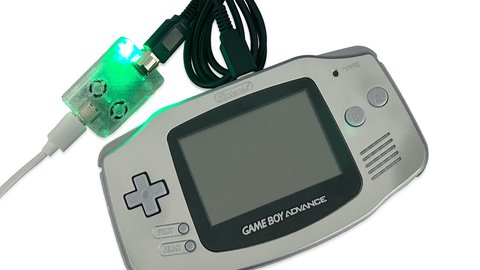
The adapter’s light should turn red ( LED guide) once it has power. That is your cue to move on to step 2. If it stays off, try a different USB cable or port.
V2 ships with a link cable, so V1 and DIY builders should bring their own. Skip the cheapest no-name GBA cables if you can. They are the most likely to cause flaky connections.
Open the Game/Tool Launcher in a supported browser.
Find the Device Health panel. On desktop it sits on the right. On mobile it is below the game list.
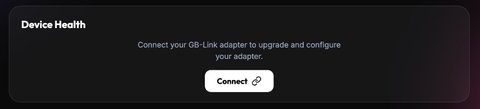
Connected and the LED turns green.| Browser | What to select |
|---|---|
| Chrome / Edge | Game Boy Link in the USB picker, then Connect |
| Firefox 151+ | Continue to Installation, then Add, then GBLink USB, then Allow. Screenshots |
| Chrome on Android | Allow USB access if Android asks, then use the same USB picker as desktop |
Want every browser prompt spelled out? See Setting Up Your Adapter.
Look at the firmware line in the same panel:
| What you see | What to do |
|---|---|
Firmware shows a version (for example 2.2.1) and no update warning | You are up to date. |
| Update available: with an Update firmware button | Click Update firmware and wait for the flash to finish. Reconnect if it asks you to, then check that the new version shows under Firmware. |
The launcher includes the latest firmware. On Chrome or Edge you usually do not need to download anything yourself.
Firefox users: The launcher can show your version over WebSerial, but one-click flashing needs Chrome or Edge. Use Flash manually instead on the launcher, or follow Updating Firmware.
In the Game/Tool Launcher, with the adapter connected, choose a game or tool from the list. Common choices include Tetris, Dr. Mario, Pokémon Trading, Pokémon Gen 3, and Advance Wars. There are utilities too, like Game Boy Printer and GB Cart Doctor.
If something fails to start or connect, go back to step 2 and update firmware if an update is available, then try again.
Cartridge requirements and per-game notes live in Games & Tools.
| Problem | Try this |
|---|---|
| Connect does nothing | Use Chrome, Edge, or Firefox 151+. See What you need. Unplug the adapter from your computer or phone, plug it back in, then click Connect again. |
| Browser can’t find the adapter | Unplug the adapter from your computer or phone, wait a moment, then plug it back in. Try another USB port or cable if it still does not show up. |
Firmware version shows Unknown | Unplug the adapter, plug it back in, then click Connect again. Refresh the page and reconnect if needed. |
| Update stalls | Unplug the adapter from your computer or phone, plug it back in, and try again. Or flash manually. |
| Page refresh broke the link | Unplug the adapter from your computer or phone (or press reset), plug it back in, then reconnect in Device Health. |
| Linux permission denied | Run ./scripts/setup-permissions.sh from the
firmware repo. |
Still stuck? Ask in the GB-Link Discord. Someone there has usually seen the same issue, and it is the best place for live help.